UI / UX Design
Operational Clarity: Cutting 40% of the clicks from a teacher dashboard
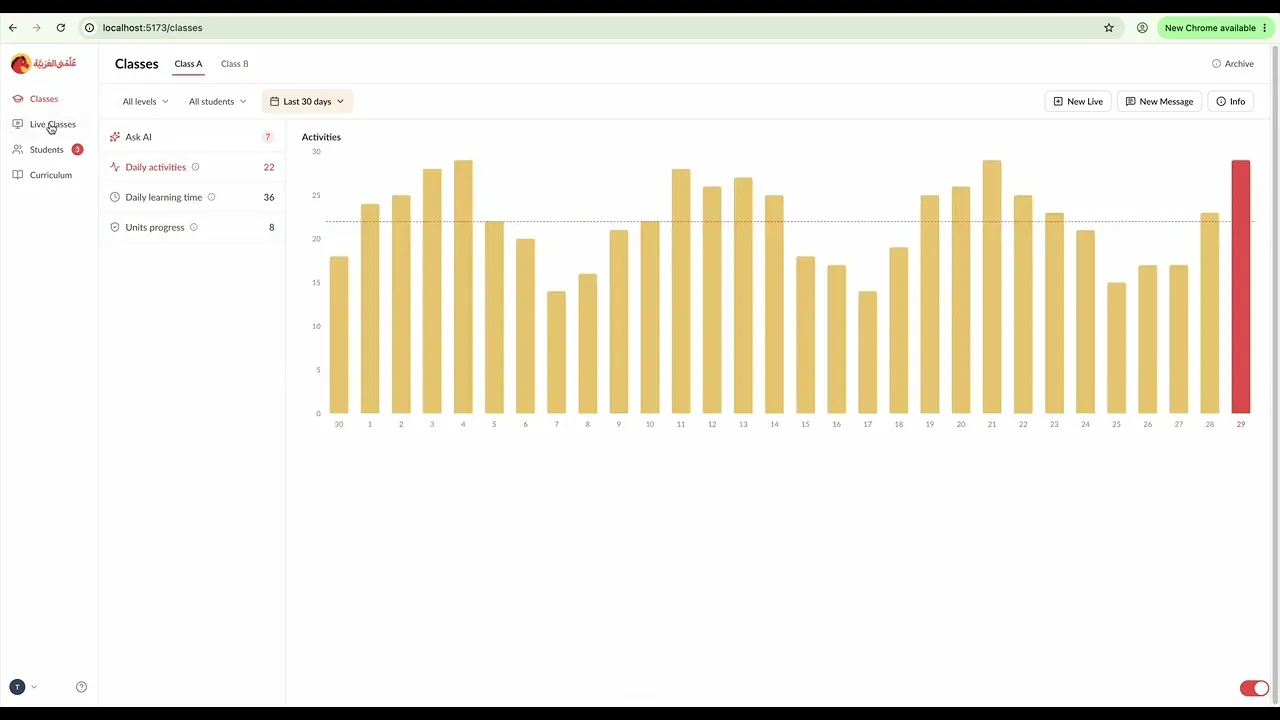
HAD Edutech needed to launch a B2B dashboard for university teachers but was stuck with a legacy system that confused users and a "design stage" prototype that was visually noisy and structurally flawed. In a 3-week sprint, I audited the friction points, decoupled the Information Architecture (IA), and established an accessible "Micro-System" of ~15 components. The result was a role-specific dashboard that prioritized teacher actions over administrative bloat.
Industry :
EdTech B2B SaaS
Client :
HAD Technologies
Project Duration :
3 weeks
Year :
2024
TLDR
HAD Edutech had a great Duolingo-style app for learning Arabic, and they wanted to explore a white-label version so universities could plug in their own content. I stepped in to help design the teachers’ dashboard, but they were stuck between a confusing legacy system and a new prototype that was visually noisy and structurally a mess. With only a three-week sprint, I didn’t have time to overthink it, so I quickly figured out where users were getting frustrated, untangled the messy navigation, and built a simple, accessible toolkit of just 15 core components. Turns out, this was exactly what I needed to deliver a clean, role-specific dashboard that got out of the teachers’ way and skipped the administrative bloat.
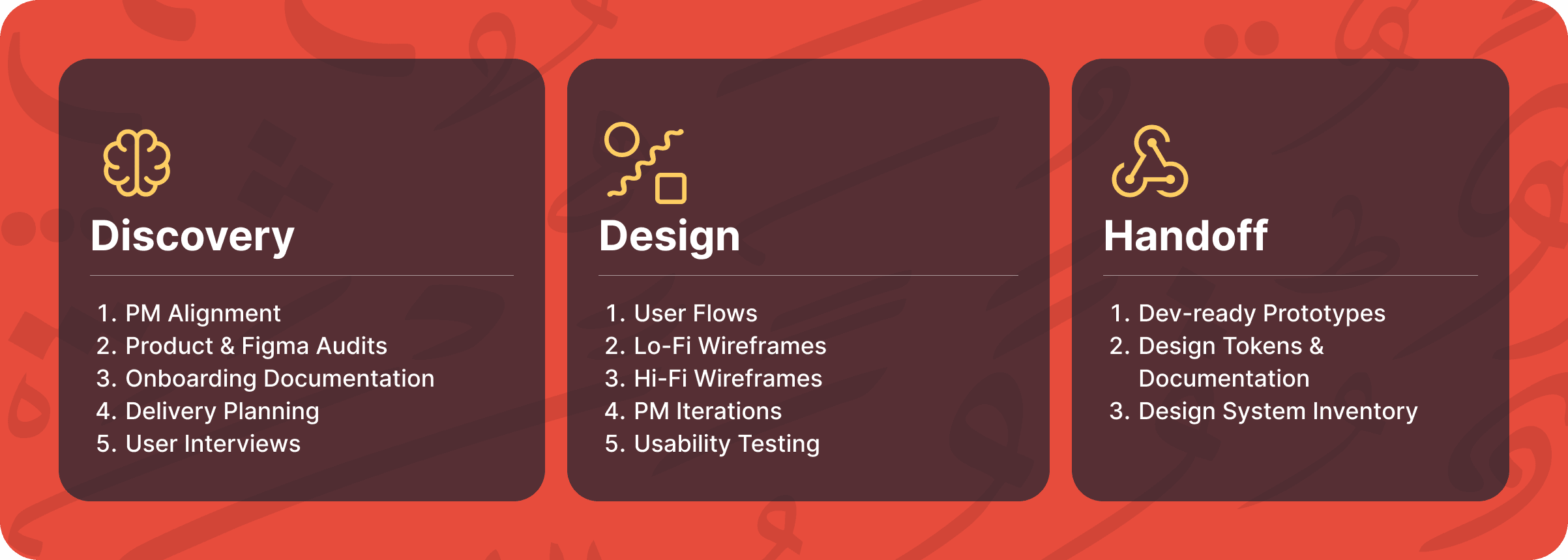
The Context: A Pivot Without a Platform
I had worked with HAD back in 2019 on their B2C app. Fast forward to 2024, and they were scaling up to offer universities a complete management ecosystem.
They reached out with a critical problem: The dashboard was "functional" but unusable. They had a legacy version (built like a 2010 WordPress admin) and a "Design Stage" prototype that was visually modern but structurally broken. With a tight deadline looming, they didn't need a total reinvention; they needed a rescue mission.
Designing Inside a Tight Box
the constraints for this project left almost no room to breathe. I had to pull off a rescue mission rather than a full reinvention, so I didn't have time to overthink things.
Working with no time: With only a three-week sprint, I had to move fast and just work with what I had.
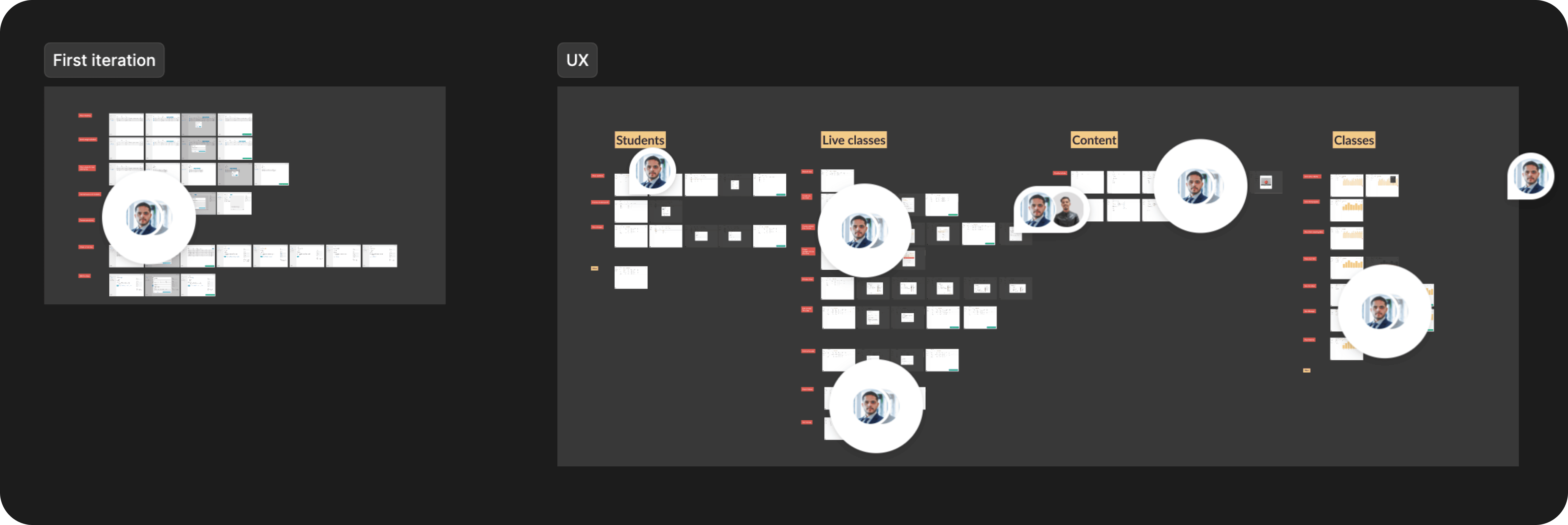
Staying focused on scope: I stuck strictly to the boundaries my PM set, executing across four core teacher modules and about 16 flows.
Designing without a system: There was zero web toolkit to lean on, meaning I had to build components from scratch on the fly.
Taming the marketing colors: The existing palette was full of saturated reds and yellows, great for marketing, but honestly pretty hostile to a clean data UI.
Figuring out why it felt broken
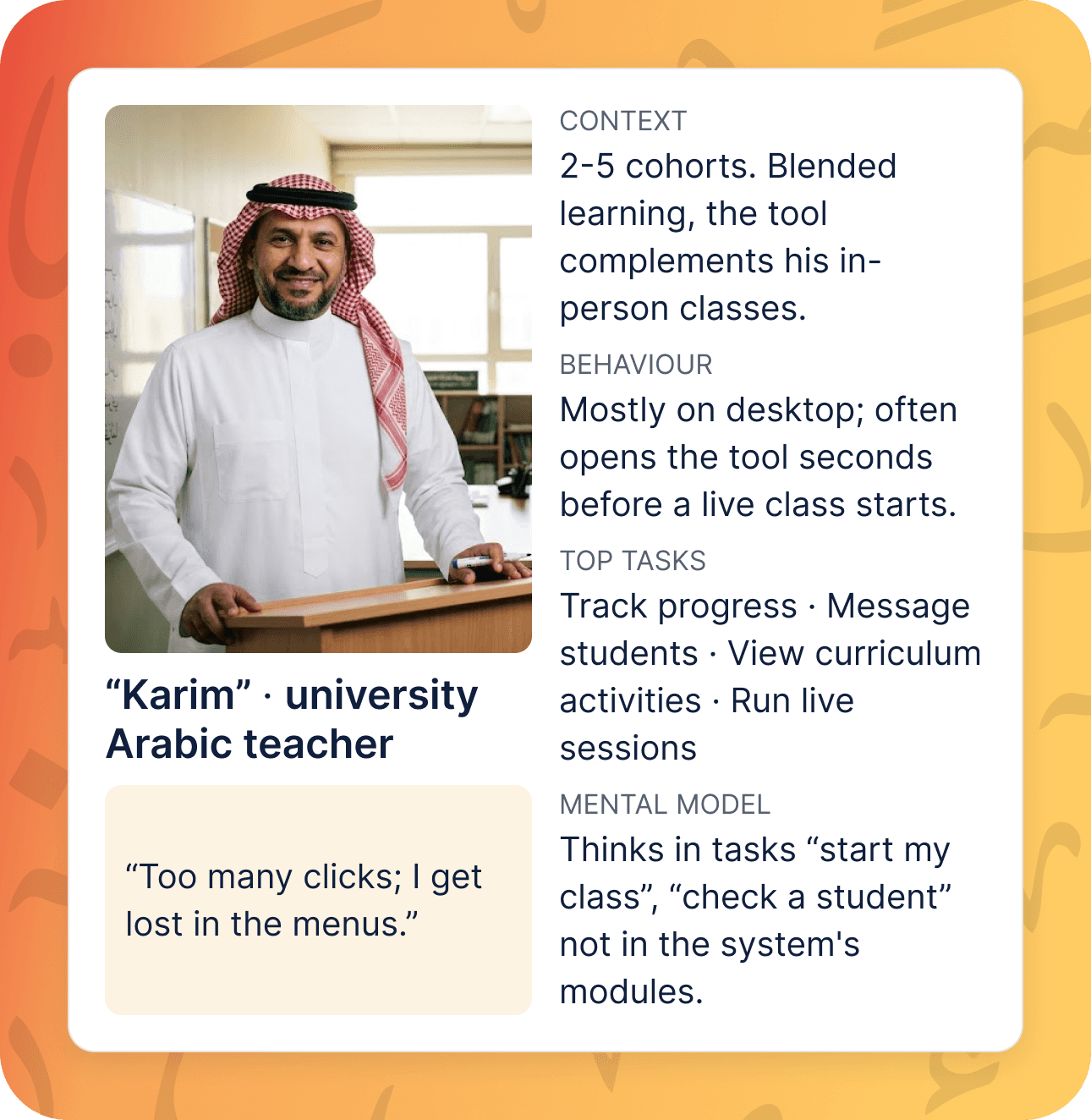
when I first looked at the existing dashboard, there was a clear "off" feeling. I was designing for teachers like our persona, Karim, instructors juggling multiple cohorts on desktop, who often open the tool literally seconds before a live class starts.
They didn't care about a perfectly complete, feature-heavy system. They thought in immediate tasks like "start my class," and they just needed speed and clarity. To figure out exactly why they were getting lost in the menus, I ran a focused discovery phase. I'll unpack the gritty details of the audit and usability testing in the next sections, but here is how I approached it:
The baseline audit: I started by mapping the main user flows, counting the click-depth for core tasks, and doing a quick check on accessibility and color contrast to see what was structurally broken.
The reality check: I ran a lightweight usability test with 2 teachers thinking aloud on the old prototype. I treated their success rates as a general direction rather than an exact science, just to see where the friction actually lived.
The reference scan: Instead of reinventing the wheel, I looked at tools like Google Classroom and ClickUp to see how they managed to keep dense workspaces organized and legible.
Turns out, everything pointed to the exact same conclusion. We had three strict priorities moving forward: cut the clutter, untangle the navigation, and calm down the visuals.
1. The Audit: Decoding the "Feature Factory"
I started by auditing both the Legacy product and the ongoing Design files. The issues weren't just aesthetic; they were deep architectural flaws that made daily tasks painful.
a. The Legacy "Purple Maze"
The existing live dashboard was riddled with ambiguous navigation. For example: the sidebar listed "Live Classes" three separate times under different headers. Teachers had to guess which link allowed them to actually start a class.

b. The "Design Stage" Disconnect
The previous designer had created a file that looked "finished" but failed basic logic tests.
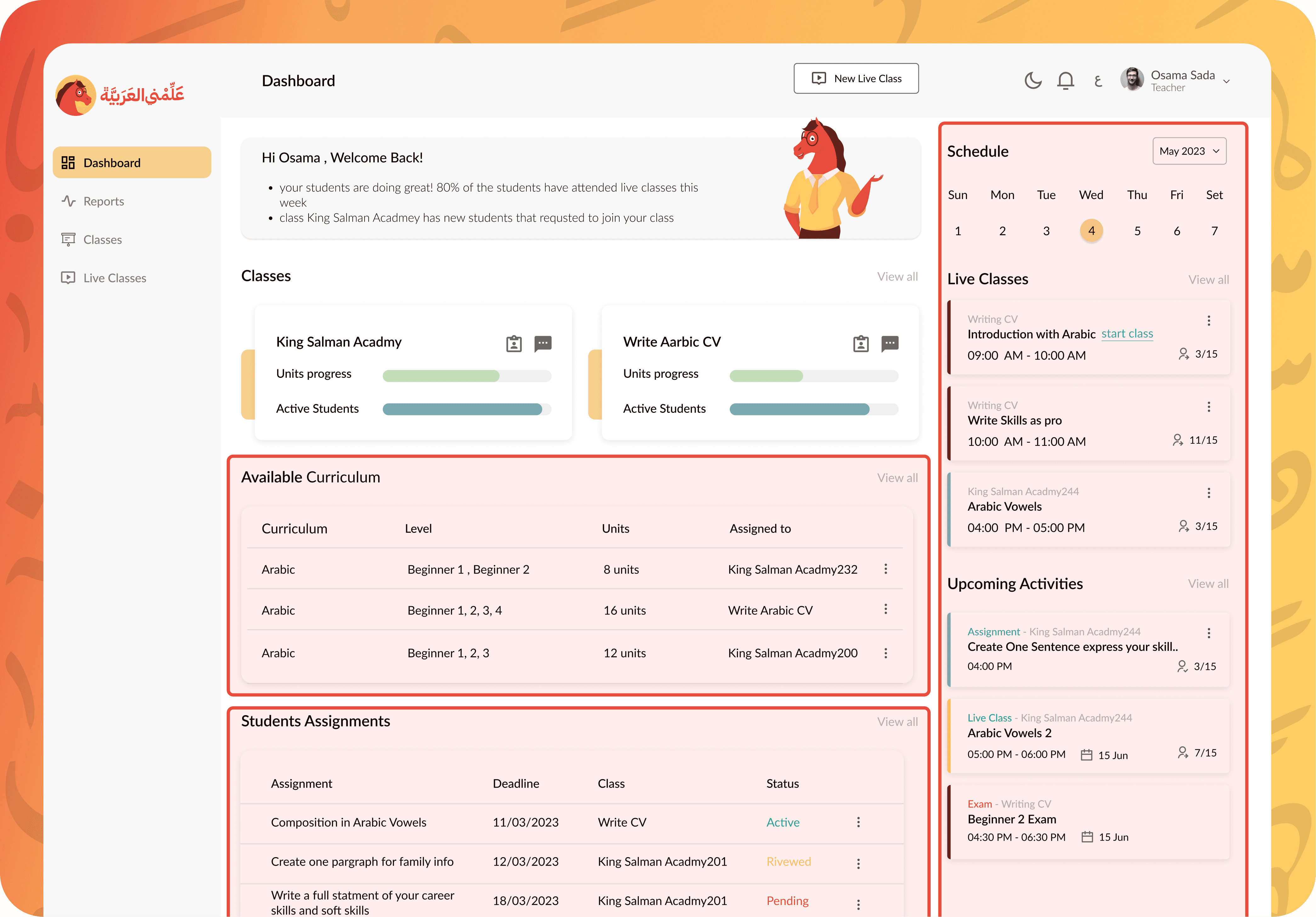
I. Visual Noise vs Utility
The design failed to match the user's mental model.
The Clutter: A massive Daily Calendar and Curriculum table dominated the view, despite being irrelevant for teachers with sparse schedules.
The Gap: The "Assignments" feature was a dead end. While it appeared on the dashboard design, it wasn't scoped for the initial release, leaving early users with a core daily tool that was visible but broken
II. Hierarchy Errors:
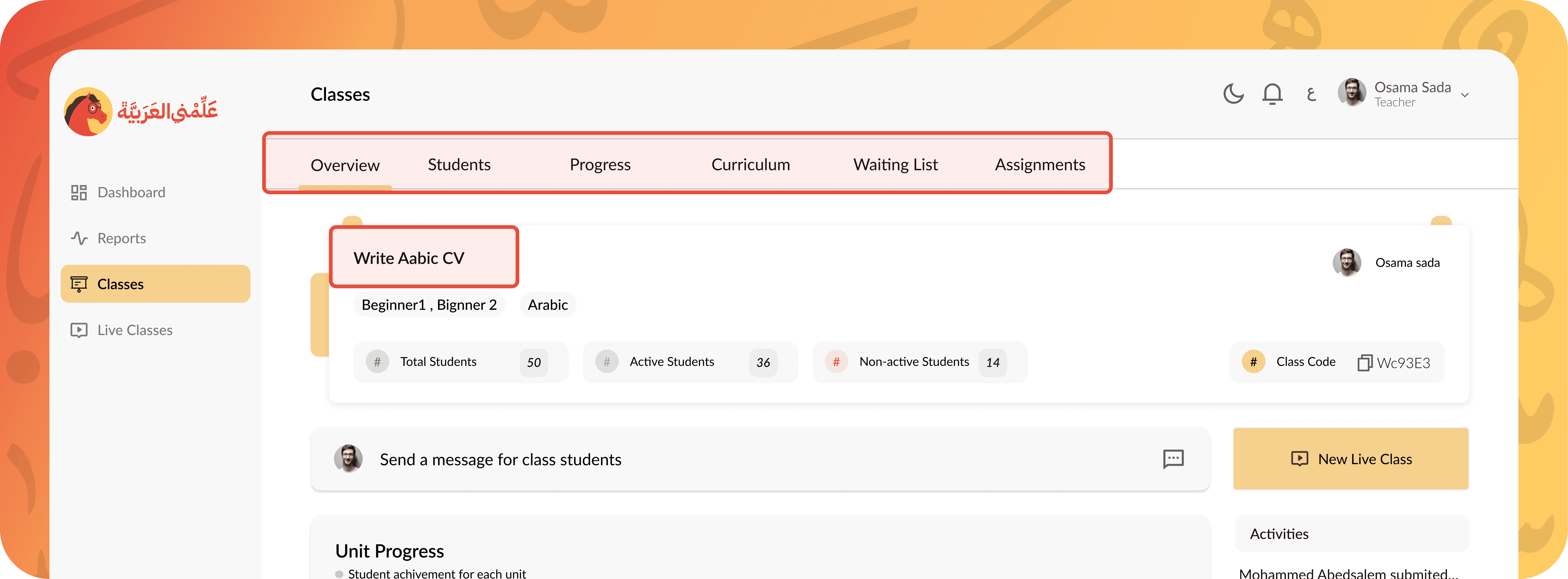
Misplaced Title: The Class Title sat below the tabs, obscuring the page context.
Nested Logic Flaw: The "Curriculum" was buried inside the "Classes" tab. This defied the system logic: Curriculums are global resources shared across levels, not unique properties of a single class.
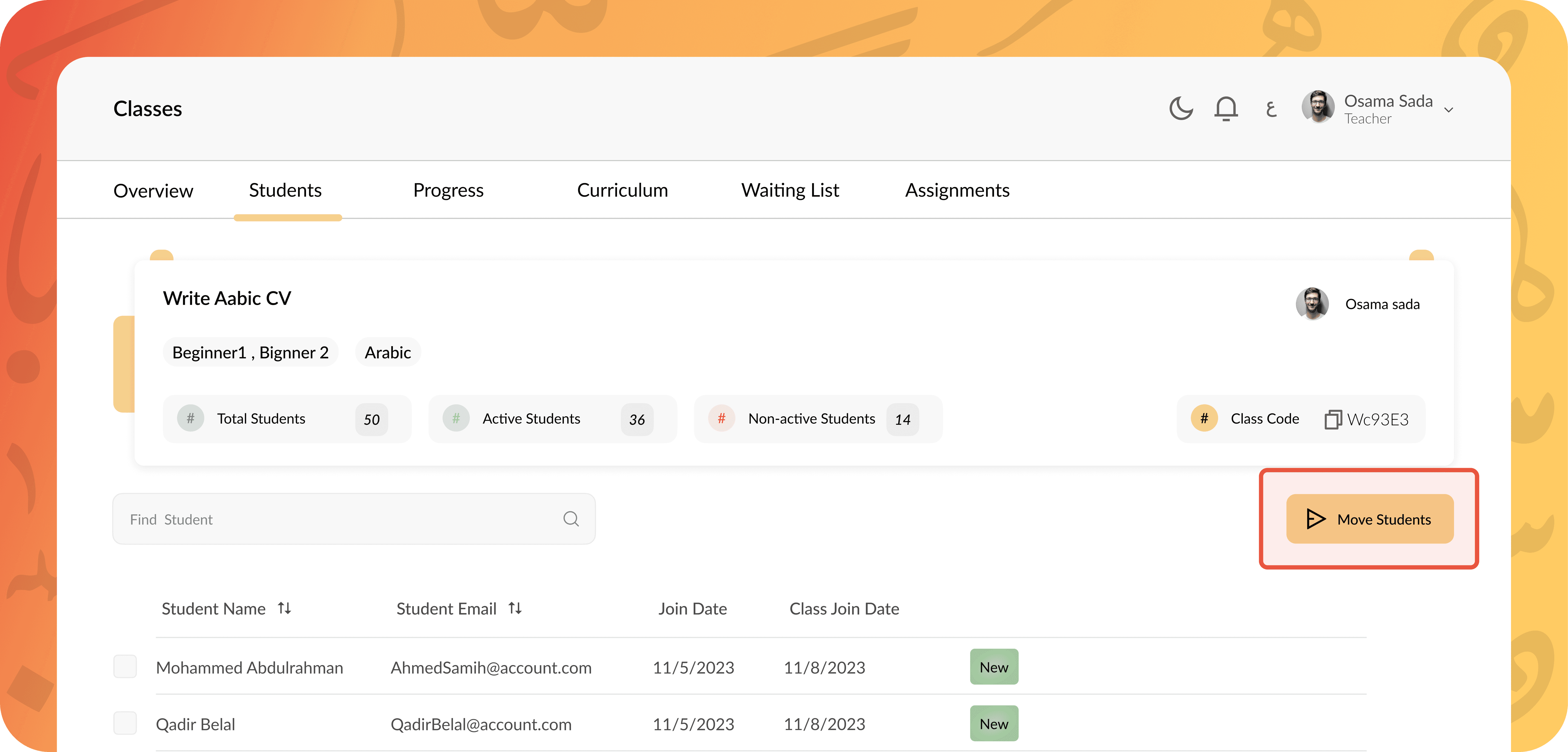
Broken Actions: The "Move Students" button was prominent but non-functional unless a student was selected, setting users up for an immediate error state.
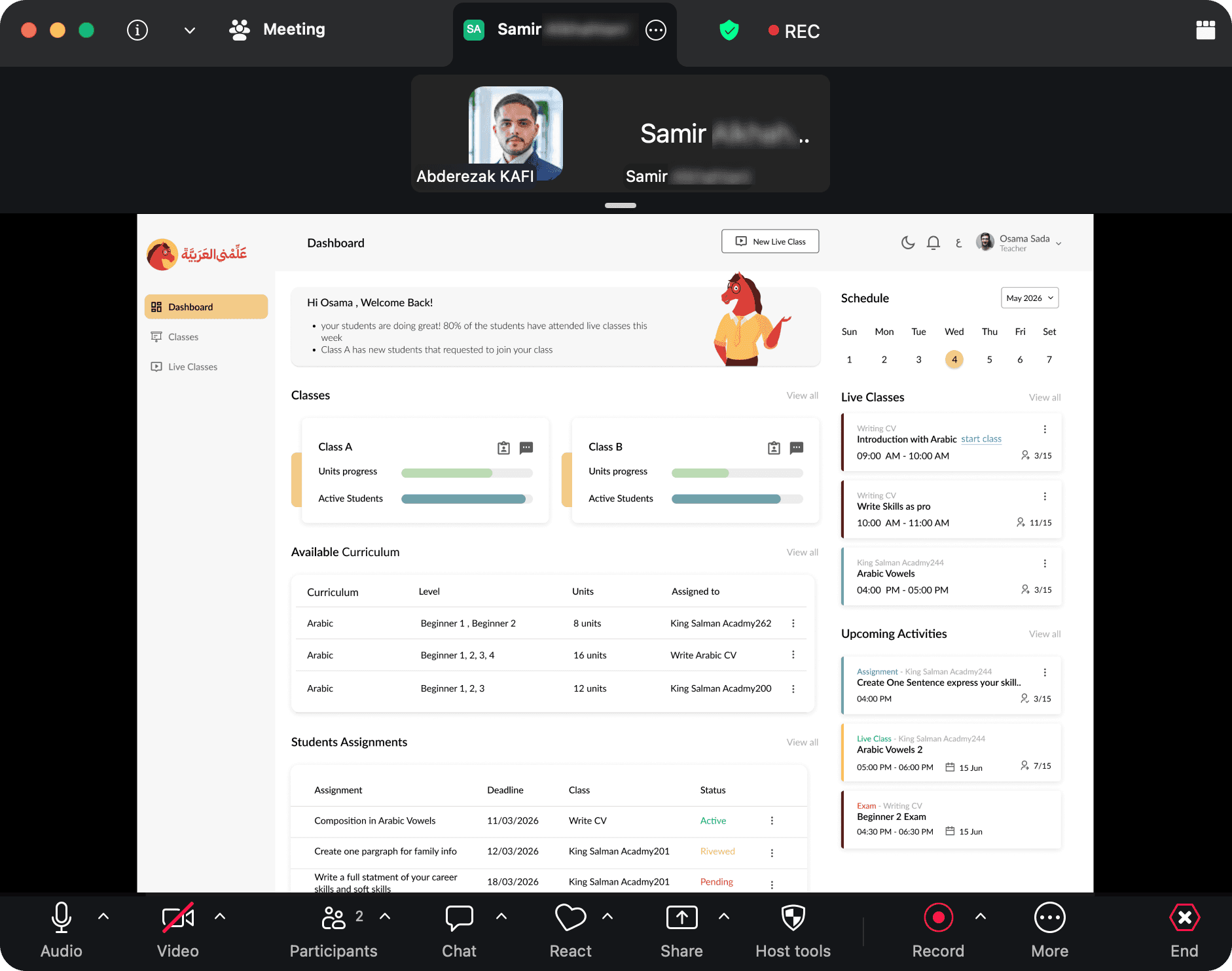
2.Putting the new prototype to the test
I didn't want to just test abstract clicks. I wanted to see how the new system held up under the pressure of a normal, busy teaching week.
So, I set up prototypes and had our teachers think out loud as they pretended to manage two different classes. I needed to know exactly how the new design performed, so I mapped out five highly specific tasks to measure the real-world friction.
Focusing on the new design: I ran the usability tests directly on the new prototype to make sure my solutions were actually hitting the mark and solving their core problems.
The five real-world tasks: Instead of giving robotic instructions, I grounded the test in five actual teaching scenarios. I asked them to: spot which unit a class was struggling with, open a student's progress profile, message a student who was falling behind, find the first activity in a specific lesson, and track down a presentation file.
Tracking the silent friction: A task isn't truly successful if it's frustrating. Beyond simple pass/fail metrics, I tracked their time-on-task, counted every misclick, and specifically watched for any time a teacher hesitated for more than five seconds.
Turns out, setting up these strict, measurable scenarios was exactly what I needed to prove the new dashboard actually got out of the teachers' way.
Fixing the friction: fewer features, clearer navigation, and a quieter canvas
The biggest usability win didn't come from adding buttons; it came from deleting them. We realized the dashboard was trying to be a "Feature Factory" rather than a tool.
Priority 1: Cutting the clutter
my hardest first move wasn't building something new—it was cutting. I had to scope the tool down strictly to what teachers actually needed every day.
The hard cuts: Removing features is always a tough sell, but I worked with my PM to drop unbuilt modules and redundant placeholders that were just adding visual noise.
The instant payoff: Stripping away the bloat gave us our very first real win: total clarity and a focused tool that actually got out of the teachers' way.
Priority 2: Flattening the navigation
my next major priority was tackling the messy navigation. I didn't touch the underlying database; I just changed how teachers moved through it. The old pathways were forcing them to work too hard to find basic things.
By making 4 specific structural moves, I managed to cut the overall clicks needed for core tasks by about 40%.
Pre-selecting the class: Defaulting to 1 active class removed a repetitive click 20% to 50% of the time.
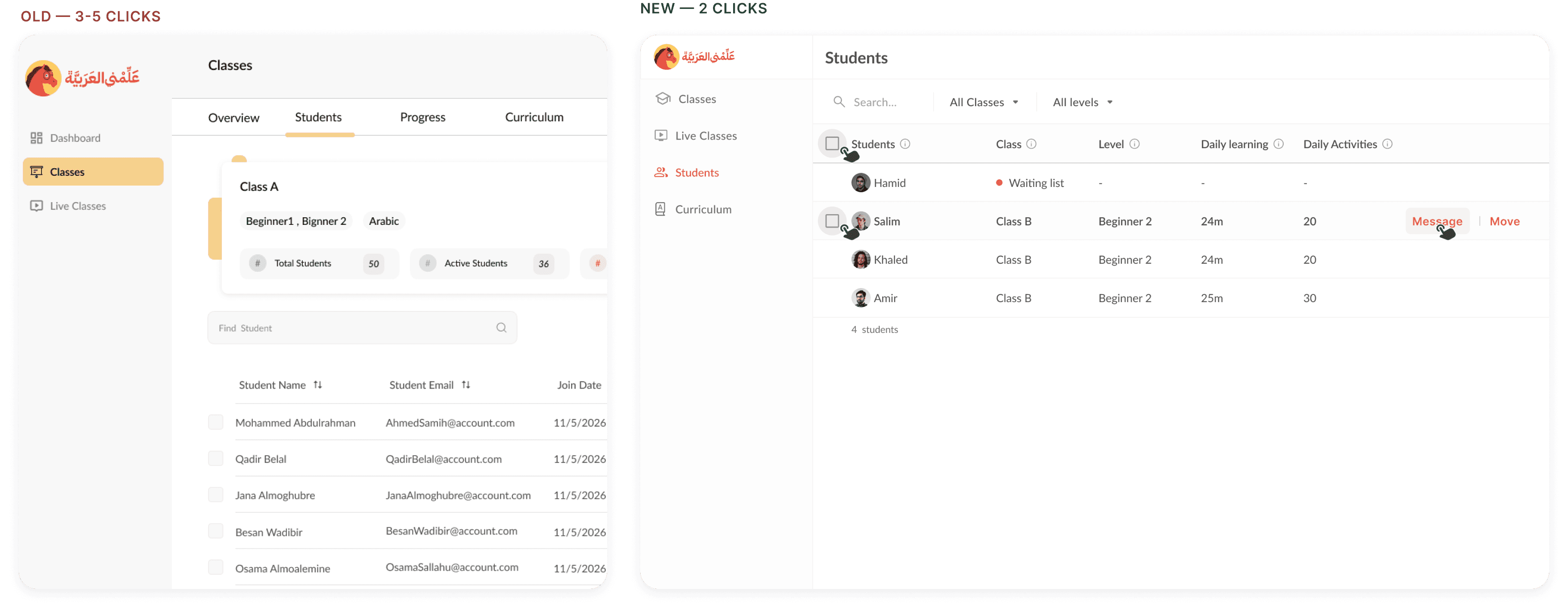
Elevating the students: Moving profiles to the top level dropped messaging a student from 3-5 clicks to 2.

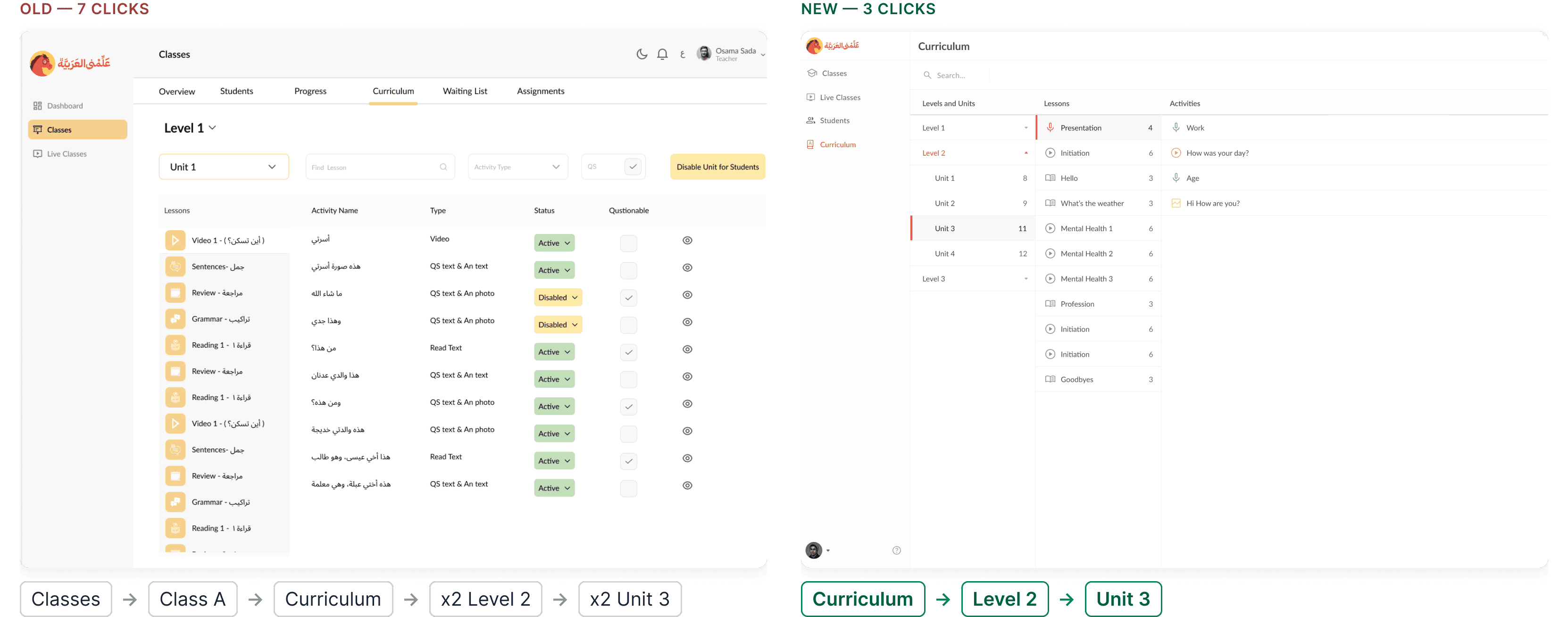
Unnesting the curriculum: Pulling this out of individual classes cut activity views from 7 clicks to 3.
Consolidating live classes: Replacing 4 status tabs with 1 unified list dropped stat views from 3 clicks to 1.
Turns out, just rethinking the pathways instead of rebuilding the data completely transformed the experience. Across 9 comparable daily tasks, teachers were doing about 40% less clicking just to get their jobs done.
Standardizing Navigation Patterns
With the hierarchy flattened, I introduced a standardized "Master Header" layout to handle density without clutter.
Zone 1 (Navigation): Module Title + Main Tabs (Context switching)+ Secondary tabs.
Zone 2 (Action): Search + Filters + Contextual Actions.
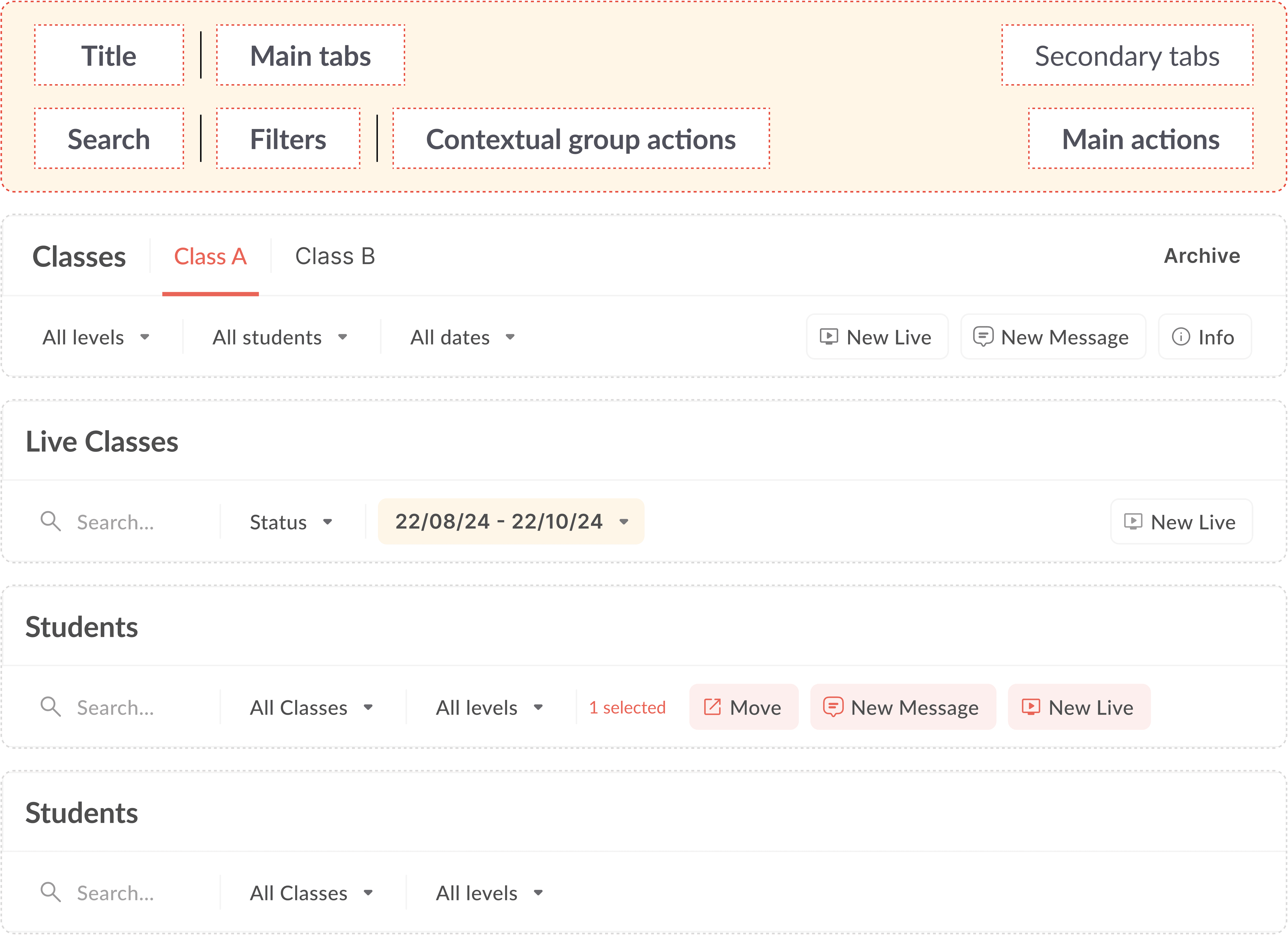
The "Waiting List" Merge: I removed the standalone "Waiting List" tab. Instead, waiting students are now merged into the main list, pinned to the top with a highlighted status. If no one is waiting, the noise is zero.
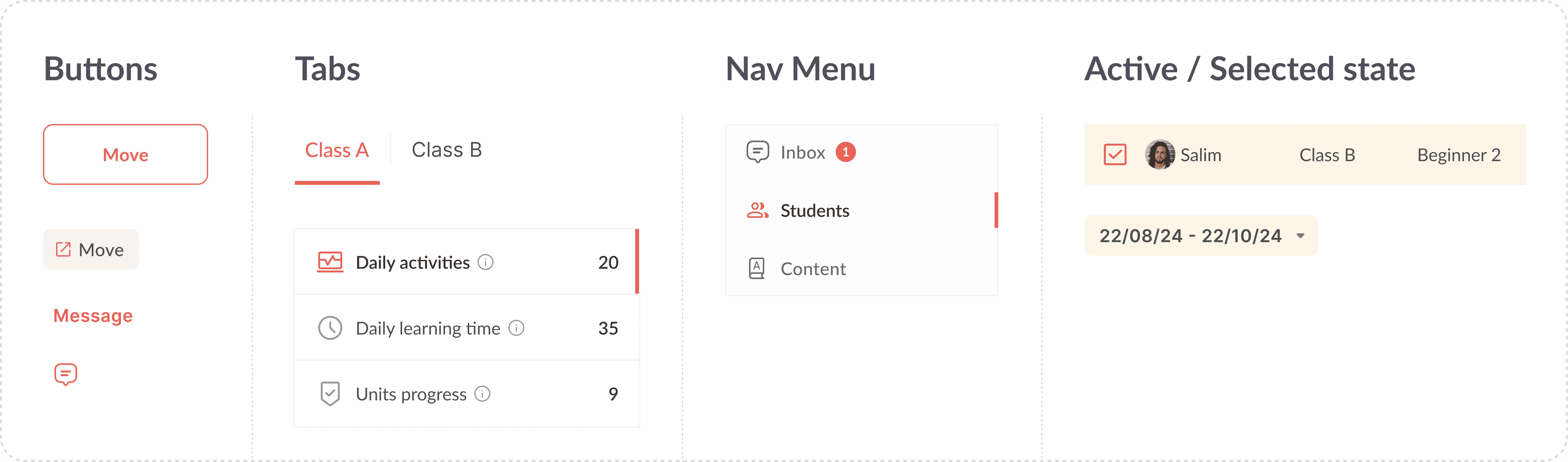
Interaction Design: Progressive Disclosure
Teachers manage hundreds of students. The previous design showed actions (Move, Contact) on every single row. It was visual chaos.
I handled it by applying the principle of Progressive Disclosure. Information should only appear when the user intends to act on it.
Hover Actions: I hid secondary actions like "Contact Student" behind a hover state on the table row.
Contextual Menus: For the "Move Student" feature, I removed the always-visible button that caused errors. Instead, a "Bulk Action Bar" now slides up only after a teacher selects a student checkbox.
Priority 3: Taming the Brand
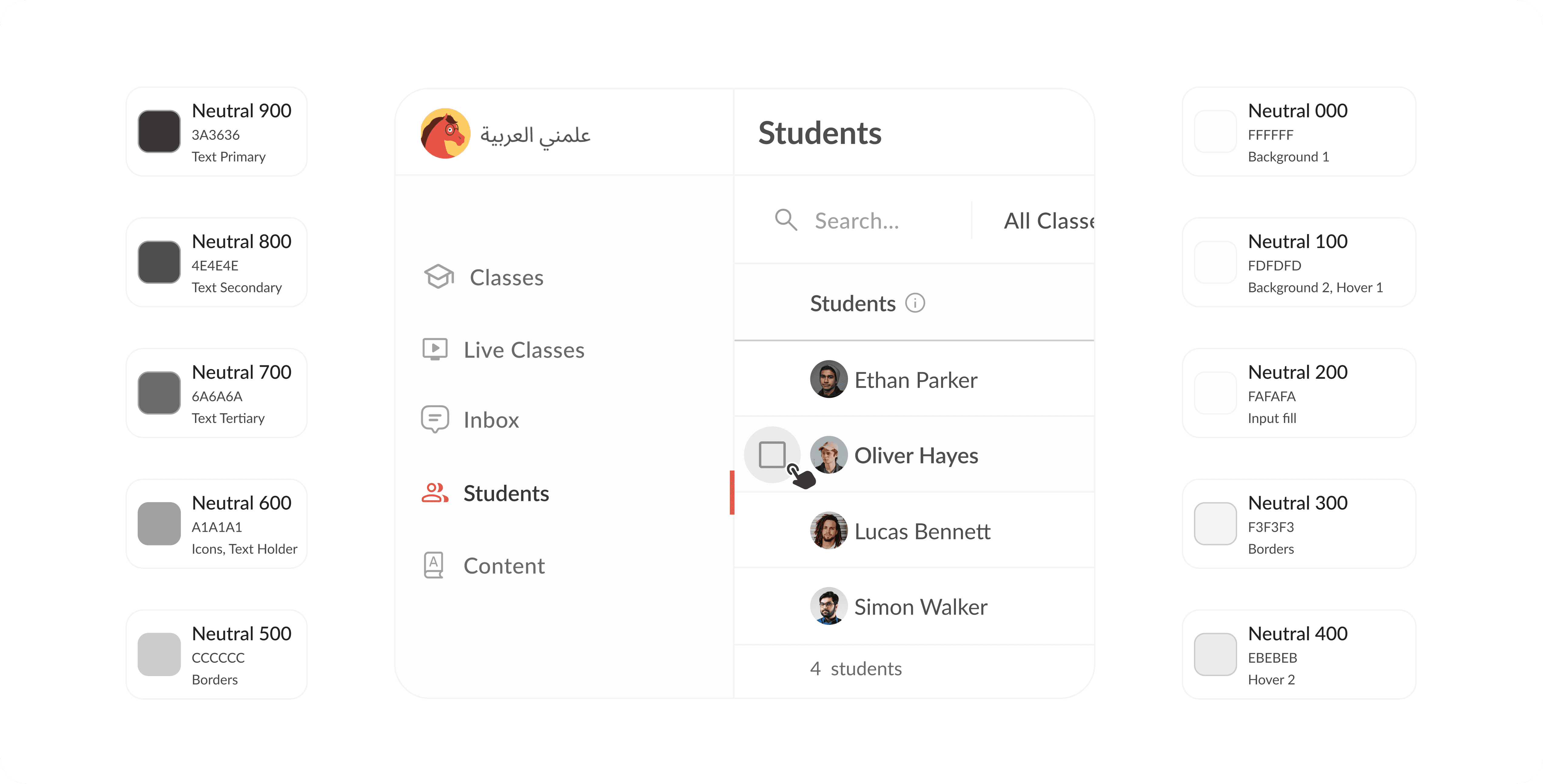
HAD’s brand identity is energetic, saturated reds and warm yellows. Great for a marketing site, but a readability nightmare for a dashboard. I had to bring their identity to life without blinding the user.
The Color Logic (Red & Yellow)
I enforced a strict "No Flash" policy:
I used the brand red for outlined or ghost buttons to keep the UI airy.
For focus states, like active filters or selected rows, I used a low-opacity yellow wash, ensuring data remained legible.

The Grey Scale Challenge
The real battle wasn't the color; it was the absence of it. Since 90% of the interface is monochrome, I had to define a rigorous Slate Gray palette. I needed distinct shades for background levels (Surface 1 vs. Surface 2), hover states, disabled inputs, and neutral actions. It’s a very thin line, if a user can't instantly distinguish a "Disabled" button from a "Secondary" one, the interface fails.
Delivery: The "Lean" System
We didn't have time for a full Design System. The developers were under pressure and needed clarity, not complexity.
The ~15 Component limit I ruthlessly simplified the UI into a "Micro-System."
Universal Table: One master table component that handled students, grades, and attendance.
Master header: A standardized, two-zone header that kept navigation and actions consistent.
The Side menu: A hybrid navigation bar that allowed switching between users and modules without leaving the page.
Charts: Instead of custom designs, I styled standard Chart.js components to match the brand colors, saving dev time.

Results & Learnings
Testing proved we successfully got out of the teachers' way. Still, no launch is perfect, and here is what I’d do differently today:
Collaborating sooner: I’d co-create with the team earlier instead of presenting finished work.
Finishing what time cut: I'd build the deferred chart colors and onboarding flow.
Closing the loop: I'd track live product analytics, not just lab tests.
Looking back, AI would completely change how I work and what we build.
Speeding up the process: I’d use AI to synthesize research, write code, and automate audits.
Rethinking the product: We could use AI to auto-summarize progress and flag at-risk students.
Going the extra mile: I actually built the complete dashboard using Claude. Check out the video below to see it in action.
Results measured in usability testing (Old prototype → new prototype)
70%→ 100%
Task success
7min → 3min
Time on task
5 → 0
Misclicks
Takeaway
In B2B design, subtraction is a superpower. The old designs failed by throwing every feature at the user at once.
By hiding actions until they were actually needed, we turned a chaotic admin panel into a focused tool that just gets out of the teachers' way.
In 2024, I removed the clicks. With AI, I'd remove the navigation itself.
More Projects
UI / UX Design
Operational Clarity: Cutting 40% of the clicks from a teacher dashboard
HAD Edutech needed to launch a B2B dashboard for university teachers but was stuck with a legacy system that confused users and a "design stage" prototype that was visually noisy and structurally flawed. In a 3-week sprint, I audited the friction points, decoupled the Information Architecture (IA), and established an accessible "Micro-System" of ~15 components. The result was a role-specific dashboard that prioritized teacher actions over administrative bloat.
Industry :
EdTech B2B SaaS
Client :
HAD Technologies
Project Duration :
3 weeks
Year :
2024
TLDR
HAD Edutech had a great Duolingo-style app for learning Arabic, and they wanted to explore a white-label version so universities could plug in their own content. I stepped in to help design the teachers’ dashboard, but they were stuck between a confusing legacy system and a new prototype that was visually noisy and structurally a mess. With only a three-week sprint, I didn’t have time to overthink it, so I quickly figured out where users were getting frustrated, untangled the messy navigation, and built a simple, accessible toolkit of just 15 core components. Turns out, this was exactly what I needed to deliver a clean, role-specific dashboard that got out of the teachers’ way and skipped the administrative bloat.
The Context: A Pivot Without a Platform
I had worked with HAD back in 2019 on their B2C app. Fast forward to 2024, and they were scaling up to offer universities a complete management ecosystem.
They reached out with a critical problem: The dashboard was "functional" but unusable. They had a legacy version (built like a 2010 WordPress admin) and a "Design Stage" prototype that was visually modern but structurally broken. With a tight deadline looming, they didn't need a total reinvention; they needed a rescue mission.
Designing Inside a Tight Box
the constraints for this project left almost no room to breathe. I had to pull off a rescue mission rather than a full reinvention, so I didn't have time to overthink things.
Working with no time: With only a three-week sprint, I had to move fast and just work with what I had.
Staying focused on scope: I stuck strictly to the boundaries my PM set, executing across four core teacher modules and about 16 flows.
Designing without a system: There was zero web toolkit to lean on, meaning I had to build components from scratch on the fly.
Taming the marketing colors: The existing palette was full of saturated reds and yellows, great for marketing, but honestly pretty hostile to a clean data UI.
Figuring out why it felt broken
when I first looked at the existing dashboard, there was a clear "off" feeling. I was designing for teachers like our persona, Karim, instructors juggling multiple cohorts on desktop, who often open the tool literally seconds before a live class starts.
They didn't care about a perfectly complete, feature-heavy system. They thought in immediate tasks like "start my class," and they just needed speed and clarity. To figure out exactly why they were getting lost in the menus, I ran a focused discovery phase. I'll unpack the gritty details of the audit and usability testing in the next sections, but here is how I approached it:
The baseline audit: I started by mapping the main user flows, counting the click-depth for core tasks, and doing a quick check on accessibility and color contrast to see what was structurally broken.
The reality check: I ran a lightweight usability test with 2 teachers thinking aloud on the old prototype. I treated their success rates as a general direction rather than an exact science, just to see where the friction actually lived.
The reference scan: Instead of reinventing the wheel, I looked at tools like Google Classroom and ClickUp to see how they managed to keep dense workspaces organized and legible.
Turns out, everything pointed to the exact same conclusion. We had three strict priorities moving forward: cut the clutter, untangle the navigation, and calm down the visuals.
1. The Audit: Decoding the "Feature Factory"
I started by auditing both the Legacy product and the ongoing Design files. The issues weren't just aesthetic; they were deep architectural flaws that made daily tasks painful.
a. The Legacy "Purple Maze"
The existing live dashboard was riddled with ambiguous navigation. For example: the sidebar listed "Live Classes" three separate times under different headers. Teachers had to guess which link allowed them to actually start a class.
b. The "Design Stage" Disconnect
The previous designer had created a file that looked "finished" but failed basic logic tests.
I. Visual Noise vs Utility
The design failed to match the user's mental model.
The Clutter: A massive Daily Calendar and Curriculum table dominated the view, despite being irrelevant for teachers with sparse schedules.
The Gap: The "Assignments" feature was a dead end. While it appeared on the dashboard design, it wasn't scoped for the initial release, leaving early users with a core daily tool that was visible but broken
II. Hierarchy Errors:
Misplaced Title: The Class Title sat below the tabs, obscuring the page context.
Nested Logic Flaw: The "Curriculum" was buried inside the "Classes" tab. This defied the system logic: Curriculums are global resources shared across levels, not unique properties of a single class.
Broken Actions: The "Move Students" button was prominent but non-functional unless a student was selected, setting users up for an immediate error state.
2.Putting the new prototype to the test
I didn't want to just test abstract clicks. I wanted to see how the new system held up under the pressure of a normal, busy teaching week.
So, I set up prototypes and had our teachers think out loud as they pretended to manage two different classes. I needed to know exactly how the new design performed, so I mapped out five highly specific tasks to measure the real-world friction.
Focusing on the new design: I ran the usability tests directly on the new prototype to make sure my solutions were actually hitting the mark and solving their core problems.
The five real-world tasks: Instead of giving robotic instructions, I grounded the test in five actual teaching scenarios. I asked them to: spot which unit a class was struggling with, open a student's progress profile, message a student who was falling behind, find the first activity in a specific lesson, and track down a presentation file.
Tracking the silent friction: A task isn't truly successful if it's frustrating. Beyond simple pass/fail metrics, I tracked their time-on-task, counted every misclick, and specifically watched for any time a teacher hesitated for more than five seconds.
Turns out, setting up these strict, measurable scenarios was exactly what I needed to prove the new dashboard actually got out of the teachers' way.
Fixing the friction: fewer features, clearer navigation, and a quieter canvas
The biggest usability win didn't come from adding buttons; it came from deleting them. We realized the dashboard was trying to be a "Feature Factory" rather than a tool.
Priority 1: Cutting the clutter
my hardest first move wasn't building something new—it was cutting. I had to scope the tool down strictly to what teachers actually needed every day.
The hard cuts: Removing features is always a tough sell, but I worked with my PM to drop unbuilt modules and redundant placeholders that were just adding visual noise.
The instant payoff: Stripping away the bloat gave us our very first real win: total clarity and a focused tool that actually got out of the teachers' way.
Priority 2: Flattening the navigation
my next major priority was tackling the messy navigation. I didn't touch the underlying database; I just changed how teachers moved through it. The old pathways were forcing them to work too hard to find basic things.
By making 4 specific structural moves, I managed to cut the overall clicks needed for core tasks by about 40%.
Pre-selecting the class: Defaulting to 1 active class removed a repetitive click 20% to 50% of the time.
Elevating the students: Moving profiles to the top level dropped messaging a student from 3-5 clicks to 2.
Unnesting the curriculum: Pulling this out of individual classes cut activity views from 7 clicks to 3.
Consolidating live classes: Replacing 4 status tabs with 1 unified list dropped stat views from 3 clicks to 1.
Turns out, just rethinking the pathways instead of rebuilding the data completely transformed the experience. Across 9 comparable daily tasks, teachers were doing about 40% less clicking just to get their jobs done.
Standardizing Navigation Patterns
With the hierarchy flattened, I introduced a standardized "Master Header" layout to handle density without clutter.
Zone 1 (Navigation): Module Title + Main Tabs (Context switching)+ Secondary tabs.
Zone 2 (Action): Search + Filters + Contextual Actions.
The "Waiting List" Merge: I removed the standalone "Waiting List" tab. Instead, waiting students are now merged into the main list, pinned to the top with a highlighted status. If no one is waiting, the noise is zero.
Interaction Design: Progressive Disclosure
Teachers manage hundreds of students. The previous design showed actions (Move, Contact) on every single row. It was visual chaos.
I handled it by applying the principle of Progressive Disclosure. Information should only appear when the user intends to act on it.
Hover Actions: I hid secondary actions like "Contact Student" behind a hover state on the table row.
Contextual Menus: For the "Move Student" feature, I removed the always-visible button that caused errors. Instead, a "Bulk Action Bar" now slides up only after a teacher selects a student checkbox.
Priority 3: Taming the Brand
HAD’s brand identity is energetic, saturated reds and warm yellows. Great for a marketing site, but a readability nightmare for a dashboard. I had to bring their identity to life without blinding the user.
The Color Logic (Red & Yellow)
I enforced a strict "No Flash" policy:
I used the brand red for outlined or ghost buttons to keep the UI airy.
For focus states, like active filters or selected rows, I used a low-opacity yellow wash, ensuring data remained legible.
The Grey Scale Challenge
The real battle wasn't the color; it was the absence of it. Since 90% of the interface is monochrome, I had to define a rigorous Slate Gray palette. I needed distinct shades for background levels (Surface 1 vs. Surface 2), hover states, disabled inputs, and neutral actions. It’s a very thin line, if a user can't instantly distinguish a "Disabled" button from a "Secondary" one, the interface fails.
Delivery: The "Lean" System
We didn't have time for a full Design System. The developers were under pressure and needed clarity, not complexity.
The ~15 Component limit I ruthlessly simplified the UI into a "Micro-System."
Universal Table: One master table component that handled students, grades, and attendance.
Master header: A standardized, two-zone header that kept navigation and actions consistent.
The Side menu: A hybrid navigation bar that allowed switching between users and modules without leaving the page.
Charts: Instead of custom designs, I styled standard Chart.js components to match the brand colors, saving dev time.
Results & Learnings
Testing proved we successfully got out of the teachers' way. Still, no launch is perfect, and here is what I’d do differently today:
Collaborating sooner: I’d co-create with the team earlier instead of presenting finished work.
Finishing what time cut: I'd build the deferred chart colors and onboarding flow.
Closing the loop: I'd track live product analytics, not just lab tests.
Looking back, AI would completely change how I work and what we build.
Speeding up the process: I’d use AI to synthesize research, write code, and automate audits.
Rethinking the product: We could use AI to auto-summarize progress and flag at-risk students.
Going the extra mile: I actually built the complete dashboard using Claude. Check out the video below to see it in action.
Results measured in usability testing (Old prototype → new prototype)
70%→ 100%
Task success
7min → 3min
Time on task
5 → 0
Misclicks
Takeaway
In B2B design, subtraction is a superpower. The old designs failed by throwing every feature at the user at once.
By hiding actions until they were actually needed, we turned a chaotic admin panel into a focused tool that just gets out of the teachers' way.
In 2024, I removed the clicks. With AI, I'd remove the navigation itself.
More Projects
UI / UX Design
Operational Clarity: Cutting 40% of the clicks from a teacher dashboard
HAD Edutech needed to launch a B2B dashboard for university teachers but was stuck with a legacy system that confused users and a "design stage" prototype that was visually noisy and structurally flawed. In a 3-week sprint, I audited the friction points, decoupled the Information Architecture (IA), and established an accessible "Micro-System" of ~15 components. The result was a role-specific dashboard that prioritized teacher actions over administrative bloat.
Industry :
EdTech B2B SaaS
Client :
HAD Technologies
Project Duration :
3 weeks
Year :
2024
TLDR
HAD Edutech had a great Duolingo-style app for learning Arabic, and they wanted to explore a white-label version so universities could plug in their own content. I stepped in to help design the teachers’ dashboard, but they were stuck between a confusing legacy system and a new prototype that was visually noisy and structurally a mess. With only a three-week sprint, I didn’t have time to overthink it, so I quickly figured out where users were getting frustrated, untangled the messy navigation, and built a simple, accessible toolkit of just 15 core components. Turns out, this was exactly what I needed to deliver a clean, role-specific dashboard that got out of the teachers’ way and skipped the administrative bloat.
The Context: A Pivot Without a Platform
I had worked with HAD back in 2019 on their B2C app. Fast forward to 2024, and they were scaling up to offer universities a complete management ecosystem.
They reached out with a critical problem: The dashboard was "functional" but unusable. They had a legacy version (built like a 2010 WordPress admin) and a "Design Stage" prototype that was visually modern but structurally broken. With a tight deadline looming, they didn't need a total reinvention; they needed a rescue mission.
Designing Inside a Tight Box
the constraints for this project left almost no room to breathe. I had to pull off a rescue mission rather than a full reinvention, so I didn't have time to overthink things.
Working with no time: With only a three-week sprint, I had to move fast and just work with what I had.
Staying focused on scope: I stuck strictly to the boundaries my PM set, executing across four core teacher modules and about 16 flows.
Designing without a system: There was zero web toolkit to lean on, meaning I had to build components from scratch on the fly.
Taming the marketing colors: The existing palette was full of saturated reds and yellows, great for marketing, but honestly pretty hostile to a clean data UI.
Figuring out why it felt broken
when I first looked at the existing dashboard, there was a clear "off" feeling. I was designing for teachers like our persona, Karim, instructors juggling multiple cohorts on desktop, who often open the tool literally seconds before a live class starts.
They didn't care about a perfectly complete, feature-heavy system. They thought in immediate tasks like "start my class," and they just needed speed and clarity. To figure out exactly why they were getting lost in the menus, I ran a focused discovery phase. I'll unpack the gritty details of the audit and usability testing in the next sections, but here is how I approached it:
The baseline audit: I started by mapping the main user flows, counting the click-depth for core tasks, and doing a quick check on accessibility and color contrast to see what was structurally broken.
The reality check: I ran a lightweight usability test with 2 teachers thinking aloud on the old prototype. I treated their success rates as a general direction rather than an exact science, just to see where the friction actually lived.
The reference scan: Instead of reinventing the wheel, I looked at tools like Google Classroom and ClickUp to see how they managed to keep dense workspaces organized and legible.
Turns out, everything pointed to the exact same conclusion. We had three strict priorities moving forward: cut the clutter, untangle the navigation, and calm down the visuals.
1. The Audit: Decoding the "Feature Factory"
I started by auditing both the Legacy product and the ongoing Design files. The issues weren't just aesthetic; they were deep architectural flaws that made daily tasks painful.
a. The Legacy "Purple Maze"
The existing live dashboard was riddled with ambiguous navigation. For example: the sidebar listed "Live Classes" three separate times under different headers. Teachers had to guess which link allowed them to actually start a class.
b. The "Design Stage" Disconnect
The previous designer had created a file that looked "finished" but failed basic logic tests.
I. Visual Noise vs Utility
The design failed to match the user's mental model.
The Clutter: A massive Daily Calendar and Curriculum table dominated the view, despite being irrelevant for teachers with sparse schedules.
The Gap: The "Assignments" feature was a dead end. While it appeared on the dashboard design, it wasn't scoped for the initial release, leaving early users with a core daily tool that was visible but broken
II. Hierarchy Errors:
Misplaced Title: The Class Title sat below the tabs, obscuring the page context.
Nested Logic Flaw: The "Curriculum" was buried inside the "Classes" tab. This defied the system logic: Curriculums are global resources shared across levels, not unique properties of a single class.
Broken Actions: The "Move Students" button was prominent but non-functional unless a student was selected, setting users up for an immediate error state.
2.Putting the new prototype to the test
I didn't want to just test abstract clicks. I wanted to see how the new system held up under the pressure of a normal, busy teaching week.
So, I set up prototypes and had our teachers think out loud as they pretended to manage two different classes. I needed to know exactly how the new design performed, so I mapped out five highly specific tasks to measure the real-world friction.
Focusing on the new design: I ran the usability tests directly on the new prototype to make sure my solutions were actually hitting the mark and solving their core problems.
The five real-world tasks: Instead of giving robotic instructions, I grounded the test in five actual teaching scenarios. I asked them to: spot which unit a class was struggling with, open a student's progress profile, message a student who was falling behind, find the first activity in a specific lesson, and track down a presentation file.
Tracking the silent friction: A task isn't truly successful if it's frustrating. Beyond simple pass/fail metrics, I tracked their time-on-task, counted every misclick, and specifically watched for any time a teacher hesitated for more than five seconds.
Turns out, setting up these strict, measurable scenarios was exactly what I needed to prove the new dashboard actually got out of the teachers' way.
Fixing the friction: fewer features, clearer navigation, and a quieter canvas
The biggest usability win didn't come from adding buttons; it came from deleting them. We realized the dashboard was trying to be a "Feature Factory" rather than a tool.
Priority 1: Cutting the clutter
my hardest first move wasn't building something new—it was cutting. I had to scope the tool down strictly to what teachers actually needed every day.
The hard cuts: Removing features is always a tough sell, but I worked with my PM to drop unbuilt modules and redundant placeholders that were just adding visual noise.
The instant payoff: Stripping away the bloat gave us our very first real win: total clarity and a focused tool that actually got out of the teachers' way.
Priority 2: Flattening the navigation
my next major priority was tackling the messy navigation. I didn't touch the underlying database; I just changed how teachers moved through it. The old pathways were forcing them to work too hard to find basic things.
By making 4 specific structural moves, I managed to cut the overall clicks needed for core tasks by about 40%.
Pre-selecting the class: Defaulting to 1 active class removed a repetitive click 20% to 50% of the time.
Elevating the students: Moving profiles to the top level dropped messaging a student from 3-5 clicks to 2.
Unnesting the curriculum: Pulling this out of individual classes cut activity views from 7 clicks to 3.
Consolidating live classes: Replacing 4 status tabs with 1 unified list dropped stat views from 3 clicks to 1.
Turns out, just rethinking the pathways instead of rebuilding the data completely transformed the experience. Across 9 comparable daily tasks, teachers were doing about 40% less clicking just to get their jobs done.
Standardizing Navigation Patterns
With the hierarchy flattened, I introduced a standardized "Master Header" layout to handle density without clutter.
Zone 1 (Navigation): Module Title + Main Tabs (Context switching)+ Secondary tabs.
Zone 2 (Action): Search + Filters + Contextual Actions.
The "Waiting List" Merge: I removed the standalone "Waiting List" tab. Instead, waiting students are now merged into the main list, pinned to the top with a highlighted status. If no one is waiting, the noise is zero.
Interaction Design: Progressive Disclosure
Teachers manage hundreds of students. The previous design showed actions (Move, Contact) on every single row. It was visual chaos.
I handled it by applying the principle of Progressive Disclosure. Information should only appear when the user intends to act on it.
Hover Actions: I hid secondary actions like "Contact Student" behind a hover state on the table row.
Contextual Menus: For the "Move Student" feature, I removed the always-visible button that caused errors. Instead, a "Bulk Action Bar" now slides up only after a teacher selects a student checkbox.
Priority 3: Taming the Brand
HAD’s brand identity is energetic, saturated reds and warm yellows. Great for a marketing site, but a readability nightmare for a dashboard. I had to bring their identity to life without blinding the user.
The Color Logic (Red & Yellow)
I enforced a strict "No Flash" policy:
I used the brand red for outlined or ghost buttons to keep the UI airy.
For focus states, like active filters or selected rows, I used a low-opacity yellow wash, ensuring data remained legible.
The Grey Scale Challenge
The real battle wasn't the color; it was the absence of it. Since 90% of the interface is monochrome, I had to define a rigorous Slate Gray palette. I needed distinct shades for background levels (Surface 1 vs. Surface 2), hover states, disabled inputs, and neutral actions. It’s a very thin line, if a user can't instantly distinguish a "Disabled" button from a "Secondary" one, the interface fails.
Delivery: The "Lean" System
We didn't have time for a full Design System. The developers were under pressure and needed clarity, not complexity.
The ~15 Component limit I ruthlessly simplified the UI into a "Micro-System."
Universal Table: One master table component that handled students, grades, and attendance.
Master header: A standardized, two-zone header that kept navigation and actions consistent.
The Side menu: A hybrid navigation bar that allowed switching between users and modules without leaving the page.
Charts: Instead of custom designs, I styled standard Chart.js components to match the brand colors, saving dev time.
Results & Learnings
Testing proved we successfully got out of the teachers' way. Still, no launch is perfect, and here is what I’d do differently today:
Collaborating sooner: I’d co-create with the team earlier instead of presenting finished work.
Finishing what time cut: I'd build the deferred chart colors and onboarding flow.
Closing the loop: I'd track live product analytics, not just lab tests.
Looking back, AI would completely change how I work and what we build.
Speeding up the process: I’d use AI to synthesize research, write code, and automate audits.
Rethinking the product: We could use AI to auto-summarize progress and flag at-risk students.
Going the extra mile: I actually built the complete dashboard using Claude. Check out the video below to see it in action.
Results measured in usability testing (Old prototype → new prototype)
70%→ 100%
Task success
7min → 3min
Time on task
5 → 0
Misclicks
Takeaway
In B2B design, subtraction is a superpower. The old designs failed by throwing every feature at the user at once.
By hiding actions until they were actually needed, we turned a chaotic admin panel into a focused tool that just gets out of the teachers' way.
In 2024, I removed the clicks. With AI, I'd remove the navigation itself.